
Seeing the “You cannot see content other people make because of how your account is set up” message on Xbox can be frustrating, particularly when trying to access multiplayer features, community creations, custom content, mods or player-created experiences.
In most cases, the you cannot see content other people make Xbox error is caused by a Microsoft or Xbox privacy setting that prevents the account from accessing user-generated content.
The key setting to check is “You can see and upload community creations.” Microsoft documentation confirms that this account privilege controls whether an Xbox account can access user-generated content.
Fortunately, the problem can usually be fixed by changing the account’s Xbox privacy settings.
What Does “You Cannot See Content Other People Make” Mean on Xbox?
The message means the Microsoft account currently has restrictions preventing it from viewing some content created or uploaded by other players.
This can include:
- Community creations
- Custom maps
- Player-created levels
- Mods and creations
- Shared game content
- Custom designs or liveries
- Certain multiplayer features
- Content uploaded by other Xbox users
The restriction is controlled at the Microsoft/Xbox account level, so the error can sometimes appear even when somebody is playing through an Xbox-connected game on a Windows PC rather than directly on an Xbox console.
Microsoft support discussions specifically identify the “You can see and upload community creations” permission as one of the main settings associated with this problem.
How to Fix You Cannot See Content Other People Make on Xbox?
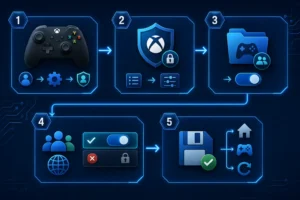
1. Open Xbox Settings
Press the Xbox button on the controller to open the guide.
Navigate to:
Profile & system → Settings
Then select:
Account → Privacy & online safety
2. Open Xbox Privacy
Select Xbox privacy.
From here, choose:
View details & customise
Xbox provides several privacy categories controlling communication, multiplayer access and content.
3. Open Game Content
Select Game content.
Look for the setting:
You can see and upload community creations
This is one of the most important settings when troubleshooting the you cannot see content other people make Xbox message.
4. Change the Setting to Everyone
Change You can see and upload community creations to:
Everyone
Depending on the interface and account type, the wording available may vary slightly.
The important point is that community-created content should not be set to Block or otherwise restricted.
5. Save the Settings
Make sure the privacy changes are saved.
Return to the Xbox Home screen and reopen the affected game.
If the message continues to appear, completely close the game before opening it again.
How to Change the Setting Online?
Players can also check their Xbox privacy permissions using their Microsoft/Xbox account online.
Sign in to the Xbox account settings using the same Microsoft account used for the affected game.
Find the privacy and online safety settings and check:
You can see and upload community creations
Set the permission to Allow or the equivalent unrestricted option where available.
Microsoft support guidance for similar errors recommends checking this particular Xbox privacy permission through the account settings page.
After saving the changes:
- Sign out of the affected game or Xbox app.
- Restart the game or application.
- Sign back into the Microsoft account.
- Try accessing the community content again.
What If “You Can See and Upload Community Creations” Is Already Allowed?
Sometimes the correct permission is already enabled but the Xbox still displays the restriction message.
Several additional checks may help.
Sign Out and Sign Back In
Privacy-setting changes may not immediately be reflected in an existing gaming session.
Sign out of the Xbox account and then sign back in.
For PC games connected to Xbox services, it may also help to sign out and back into both the Xbox app and the relevant Microsoft account.
Restart the Xbox
Perform a full restart rather than simply returning to the Home screen.
Go to:
Settings → General → Power options → Restart now
Then reopen the affected game.
Toggle the Permission
Another troubleshooting method is to temporarily change the community creations permission to a more restrictive option, save it, and then change it back to Everyone/Allow.
Afterwards, restart the Xbox or game.
This can sometimes force the updated account permission to synchronise.
Check Other Multiplayer Permissions
Some games require more than access to community creations.
Depending on the feature being used, check permissions relating to:
- Joining multiplayer games
- Cross-network play
- Voice and text communication
- Multiplayer invitations
- Community creations
For example, Microsoft community guidance for similar problems recommends reviewing community creations alongside multiplayer and cross-network permissions when the affected feature combines user-generated content with online multiplayer.
What If the Xbox Account Is a Child Account?
This is one of the most common reasons someone cannot change the setting themselves.
A child or teen account can be part of a Microsoft Family group where privacy permissions are controlled by a parent or family organiser.
Microsoft provides Family Safety features that allow organisers to establish restrictions covering children’s apps, games, online activity and content.
If the Xbox says that the settings are being managed for the account, the family organiser may need to make the change.
The organiser should sign into the Microsoft/Xbox account associated with the family group and select the affected child’s account.
They can then review the child’s Xbox privacy permissions and decide whether access to community-created content should be allowed.
Microsoft confirms that parental consent and Family Safety restrictions can control children’s access to Microsoft services and online content.
A child should not attempt to bypass parental controls. The parent or organiser responsible for the Microsoft Family group needs to approve any appropriate changes.
Why Can’t I Change My Xbox Privacy Settings?

If the options are unavailable or cannot be edited, the account may be:
- Registered as a child account
- Managed through Microsoft Family
- Subject to parental consent requirements
- Using privacy defaults set by a family organiser
- Signed into the wrong Microsoft account
First, make sure the Microsoft account being edited is the same account used by the Xbox profile experiencing the problem.
If it is a child account, the responsible family organiser may need to make the change.
Does This Error Affect Roblox on Xbox or PC?
Yes. Variations of the message have been reported when attempting to access Roblox experiences through Microsoft/Xbox-connected accounts.
Although somebody may be playing on Windows, Xbox privacy permissions can still affect features associated with the Microsoft gaming account.
Microsoft Q&A guidance for the Roblox version of this error recommends checking Xbox privacy settings and enabling the “You can see and upload community creations” permission.
After changing it, fully restart Roblox before testing again.
Can This Setting Affect Minecraft, Forza, Skyrim and Other Games?
Potentially, yes.
The setting is not limited to one individual game because it controls an Xbox account-level permission concerning user-generated content.
Depending on the title, blocked community content could affect things such as:
| Game feature | Possible effect of restrictions |
| Community creations | May be unavailable |
| User-generated maps | May not display |
| Mods or creations | Access may be restricted |
| Custom designs | May not appear |
| Shared content | Could be unavailable |
| Multiplayer UGC | Certain features may be blocked |
Exactly what is affected depends on how an individual game uses Xbox account permissions.
Why Does Xbox Restrict Community-Created Content?
Community content is created and uploaded by other users rather than being supplied entirely by Microsoft or the game developer.
Xbox therefore provides privacy and online-safety controls that allow users and parents to determine what kinds of interactions or content an account can access.
These controls are particularly important for children’s accounts.
Microsoft Family Safety allows organisers to establish age-appropriate boundaries and manage children’s access to games and online services.
What If the Xbox Setting Keeps Changing Back?
If “You can see and upload community creations” keeps reverting after being changed, first determine whether the account belongs to a Microsoft Family group.
Family permissions can override changes made directly from the affected profile.
Check that:
- The correct Microsoft account is being edited.
- A family organiser is not controlling the permission.
- The change has actually been saved.
- The console has been restarted after the change.
- The account has been signed out and back in.
If the setting still refuses to remain enabled, the problem may be related to account configuration rather than the individual game.
What If Nothing Fixes the Error?
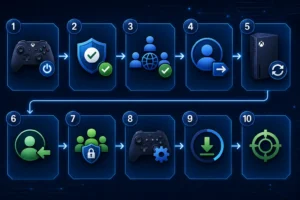
If the privacy setting is correctly configured but community content remains unavailable, try the following sequence:
- Completely close the game.
- Confirm You can see and upload community creations is allowed.
- Check multiplayer and cross-network permissions if relevant.
- Sign out of the Xbox account.
- Restart the console or PC.
- Sign back into the same Microsoft account.
- Check whether a family organiser controls the account.
- Check whether the individual game has its own parental or online-content settings.
- Check for game or Xbox system updates.
- Test the feature again.
If only one particular game is affected while community content works normally elsewhere, the issue may be specific to that game rather than the Xbox account itself.
Final Thoughts
The you cannot see content other people make Xbox message is normally connected to Xbox privacy permissions rather than a fault with the console itself.
The first setting to check is:
Settings → Account → Privacy & online safety → Xbox privacy → View details & customise → Game content → You can see and upload community creations → Everyone
If the account is part of a Microsoft Family group, the family organiser may need to make the change instead.
Once the appropriate permission has been enabled, restarting the game and signing back into the Xbox account will often restore access to community creations and other supported user-generated content.
FAQs
How do I allow other people’s content on Xbox?
Open Settings → Account → Privacy & online safety → Xbox privacy → View details & customise → Game content. Find You can see and upload community creations and change the permission to Everyone or the available unrestricted option.
Why does Xbox say I cannot see content other people make?
The account’s Xbox privacy settings are usually blocking user-generated or community-created content. Child-account or Microsoft Family restrictions can also cause the message.
What setting allows community creations on Xbox?
The main setting is “You can see and upload community creations.” Microsoft documentation identifies this privilege as controlling access to user-generated content.
Why can’t I change Xbox privacy settings?
If the account is registered as a child account or is managed through Microsoft Family Safety, a parent or family organiser may control the privacy permissions.
Do I need to restart Xbox after changing privacy settings?
It is advisable. Closing the affected game and restarting the Xbox helps ensure the updated account permissions are recognised.
Why is the error still appearing after I selected Everyone?
The game may still be using the previous account permission. Sign out, restart the console or PC, and sign back in. Also check whether Microsoft Family restrictions or another multiplayer permission is affecting the feature.